> ## Documentation Index
> Fetch the complete documentation index at: https://docs.oneworldai.com/llms.txt
> Use this file to discover all available pages before exploring further.
# Sync Local Agent Sessions
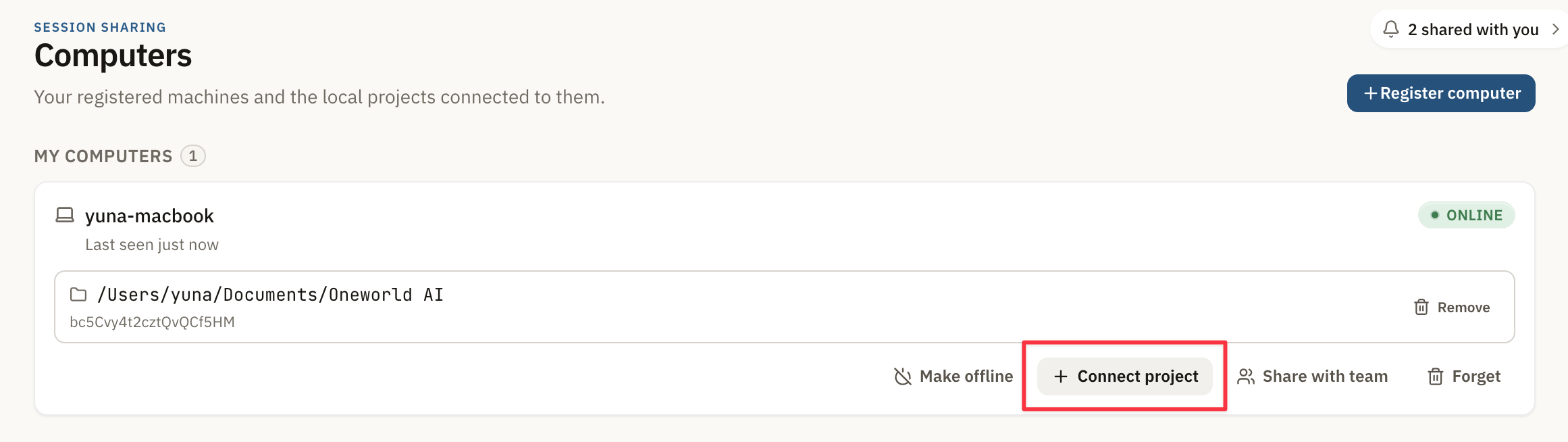
You can connect local Agent working directories from the Computers page and sync
the sessions inside those directories to OneWorld.
## Connect a working directory
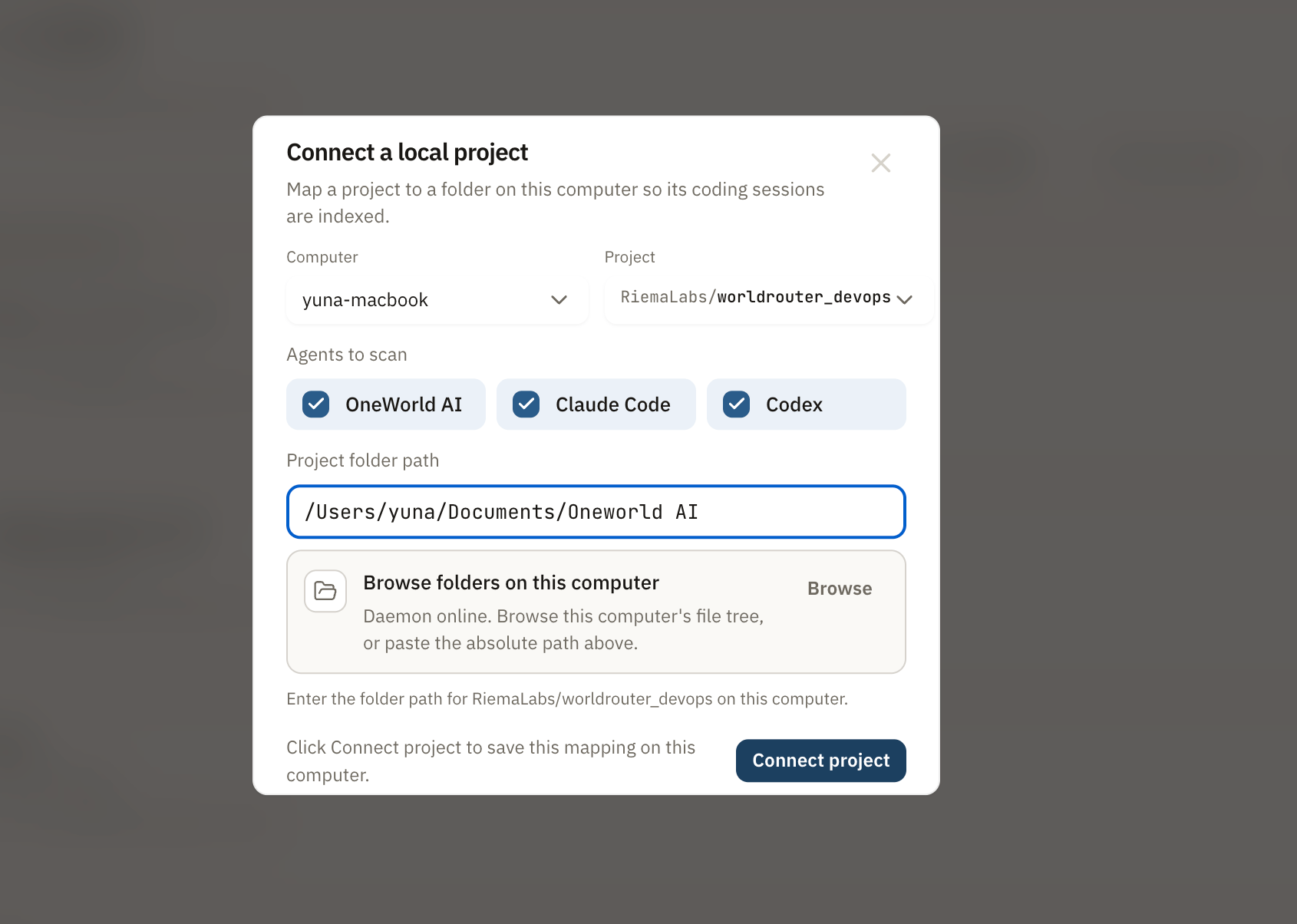
Open the Computers page, choose the Computer you want to use, then connect the
working directory where your local Agent stores project work.
Choose the directory that matches the project or repository you want to sync.
OneWorld uses this connection to find local Agent sessions that belong to that
work area.
 ## Sync local sessions to OneWorld
After the working directory is connected, OneWorld can bring the local sessions
from that directory into the OneWorld platform.
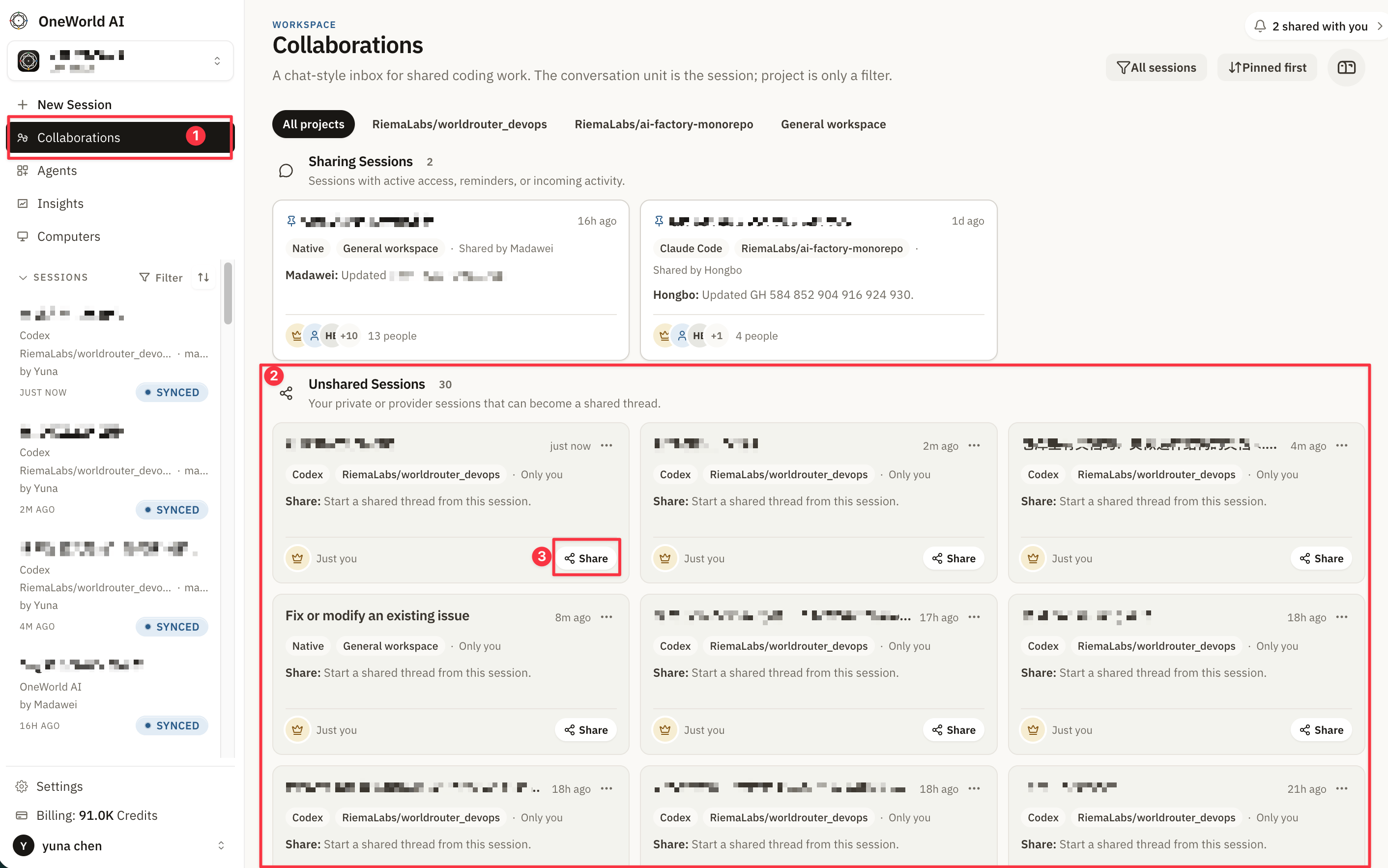
Use the Share button when you have already started work in a local coding Agent
and want the session to become visible in OneWorld for review, collaboration, or
handoff.
## Sync local sessions to OneWorld
After the working directory is connected, OneWorld can bring the local sessions
from that directory into the OneWorld platform.
Use the Share button when you have already started work in a local coding Agent
and want the session to become visible in OneWorld for review, collaboration, or
handoff.
 ## What gets synced
The synced session keeps the useful work context from your local Agent so your
team can open it from OneWorld and continue from the same thread.
## When to use this
Use local session sync when:
* you started work locally before creating a OneWorld Cloud Session
* you want teammates to review local Agent progress in OneWorld
* you want to hand off unfinished local work to another teammate
* you want OneWorld to become the shared place for ongoing collaboration
## What gets synced
The synced session keeps the useful work context from your local Agent so your
team can open it from OneWorld and continue from the same thread.
## When to use this
Use local session sync when:
* you started work locally before creating a OneWorld Cloud Session
* you want teammates to review local Agent progress in OneWorld
* you want to hand off unfinished local work to another teammate
* you want OneWorld to become the shared place for ongoing collaboration