> ## Documentation Index
> Fetch the complete documentation index at: https://docs.oneworldai.com/llms.txt
> Use this file to discover all available pages before exploring further.
# OneWorld Cloud Sessions
OneWorld Cloud Sessions are intelligent Agent runs in the cloud. They are as
capable as coding agents like Codex and Claude, and they give your team a shared
place to start, continue, review, and hand off work with AI.
## Create a session
Session creation is currently in private beta. Both Ask mode and Dev mode may
make code-level changes, and sessions created under a specific project may
still encounter bugs. Review the selected project and repository carefully
before you start.
Create a session when you want to ask a question, explore an idea, investigate a
problem, or work with an Agent on a project.
You can start in Ask mode without selecting a project or repository. This is a
good way to chat with an Agent, ask general questions, discuss product ideas, or
get help thinking through a problem.
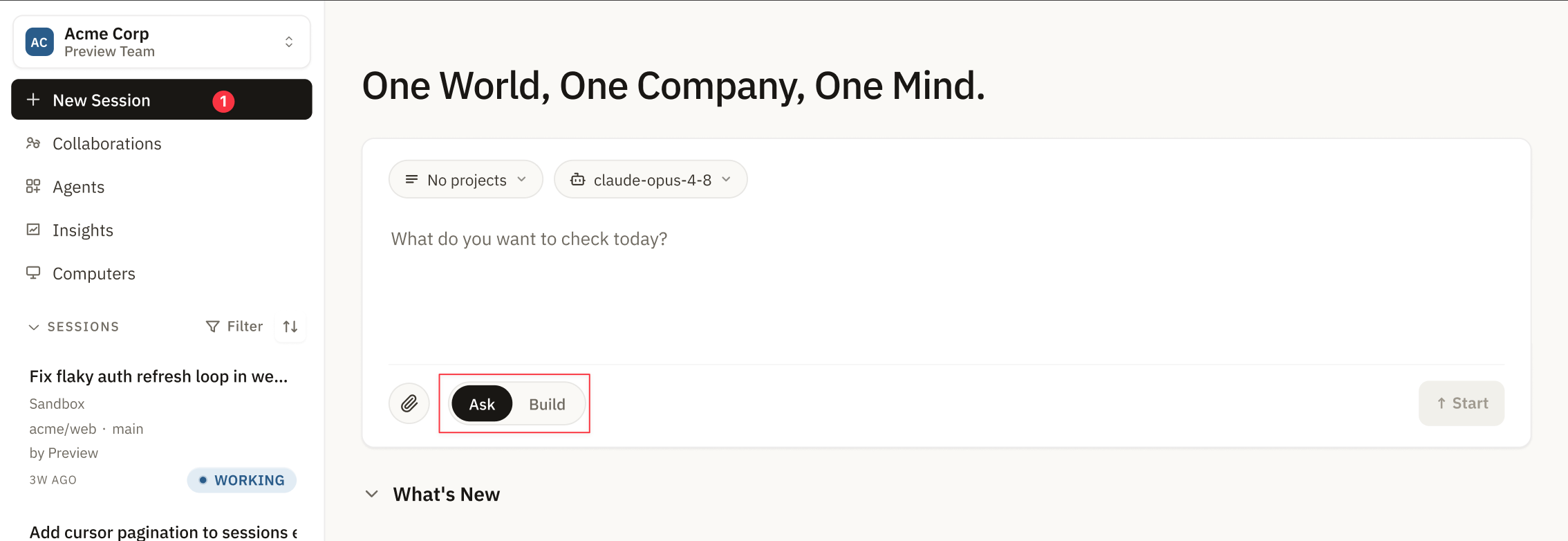 You can also select a repository from one of your projects. In Ask mode, you can
ask questions about that repository's code, architecture, behavior, or setup.
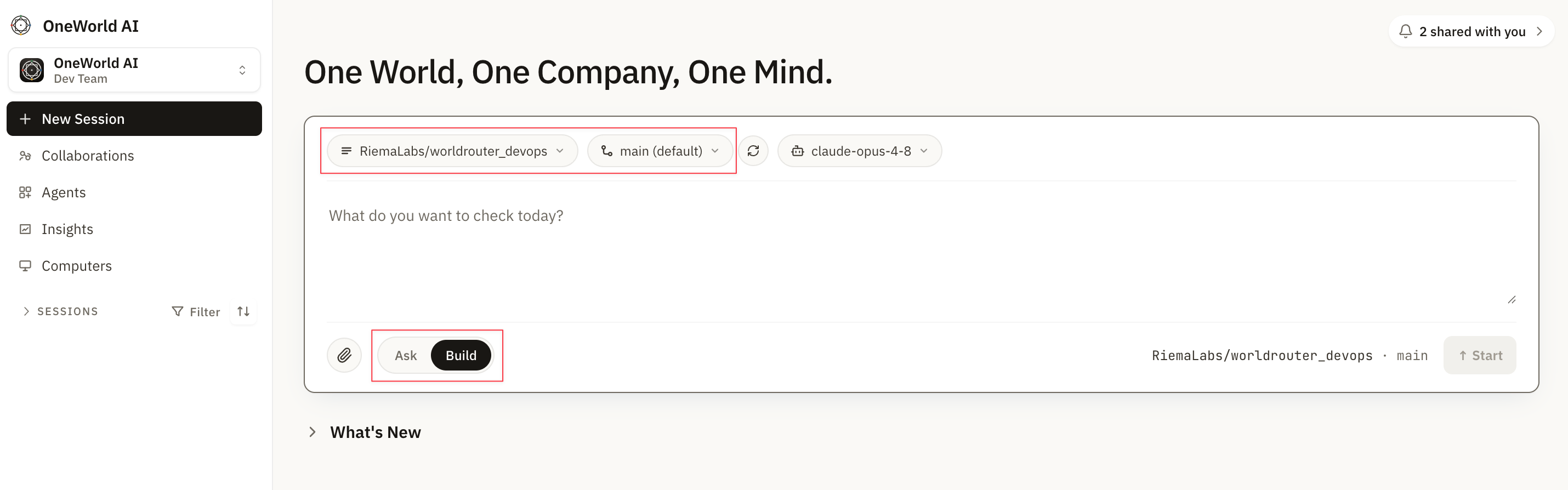
Use Dev mode when you want the Agent to work directly with the selected
repository. Dev mode is for code-level tasks such as debugging, making changes,
running commands, and preparing implementation work.
You can also select a repository from one of your projects. In Ask mode, you can
ask questions about that repository's code, architecture, behavior, or setup.
Use Dev mode when you want the Agent to work directly with the selected
repository. Dev mode is for code-level tasks such as debugging, making changes,
running commands, and preparing implementation work.
 ## Invite your teammate to a session
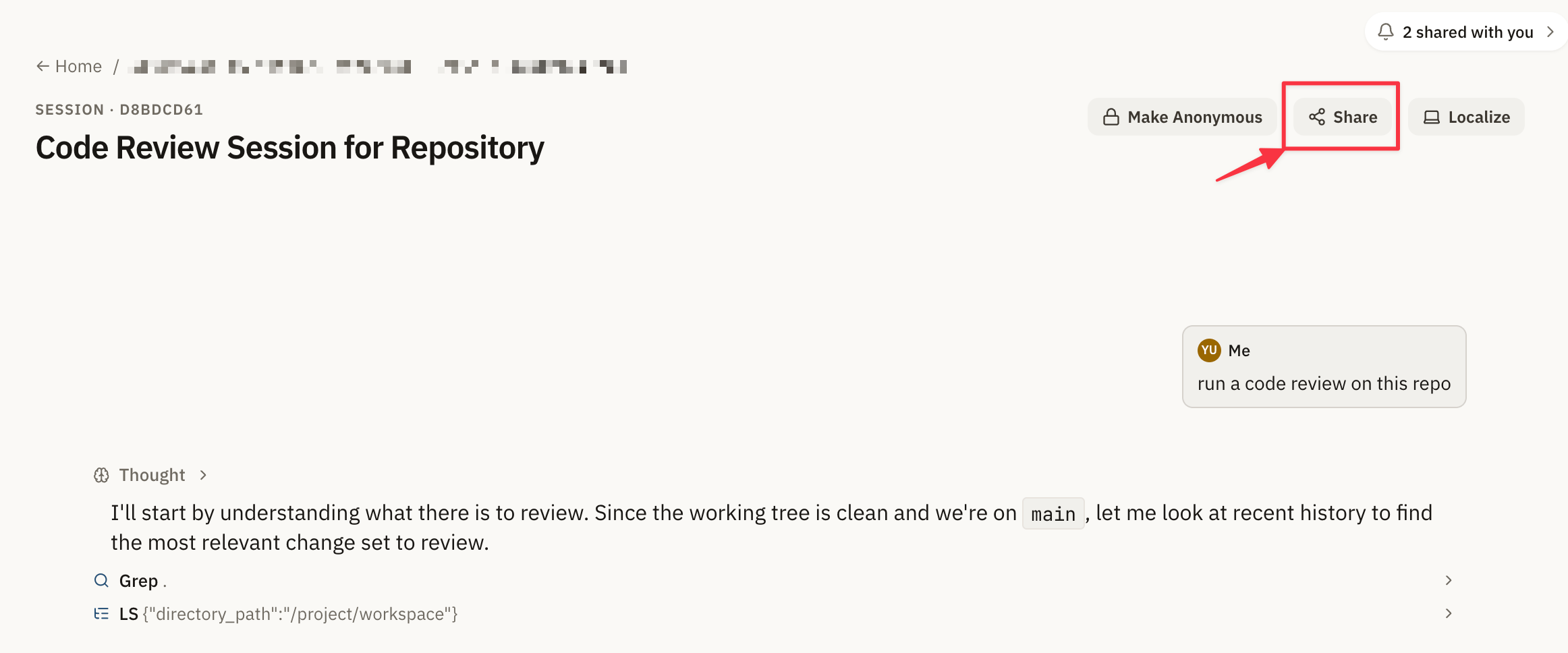
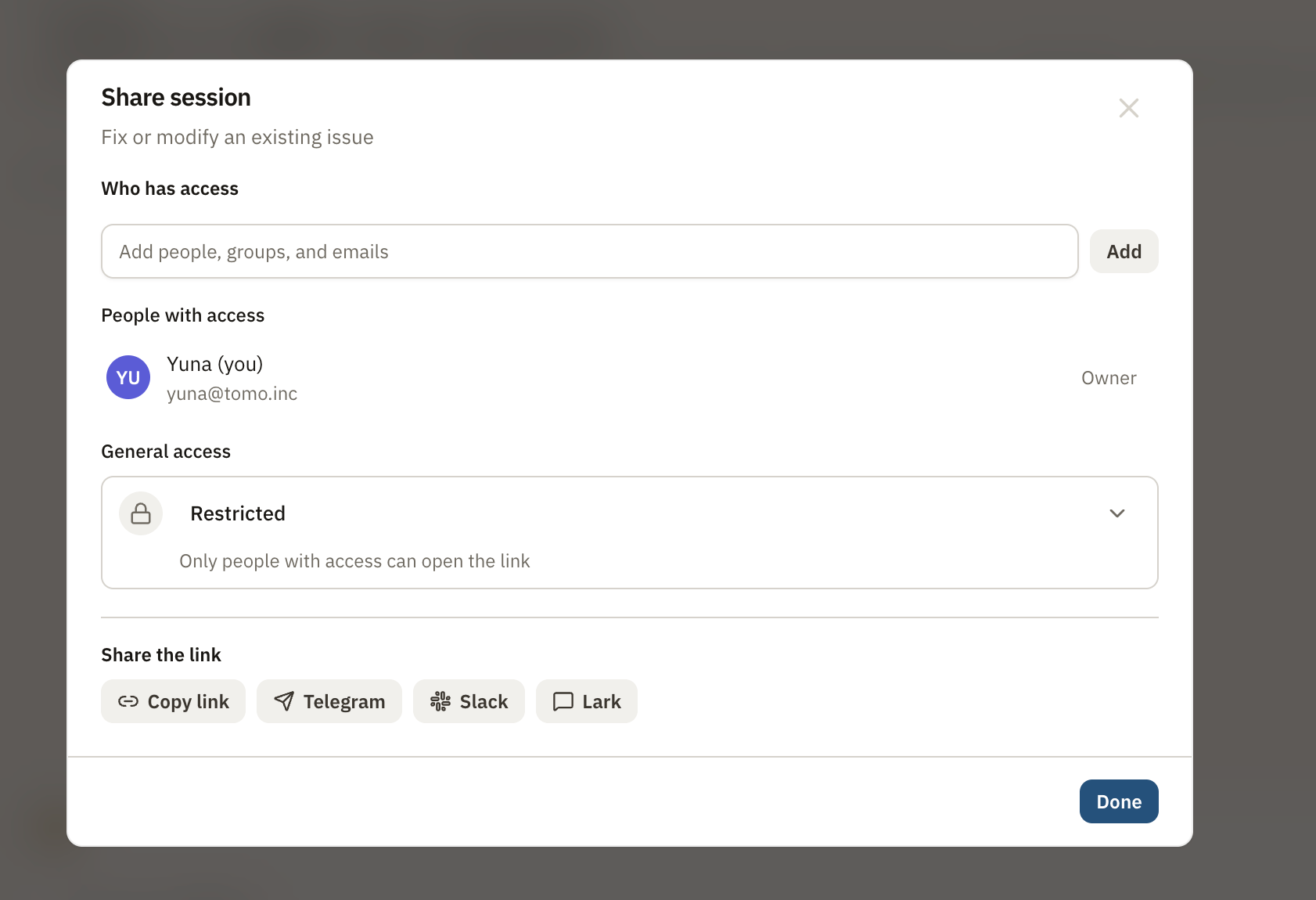
Open a session detail page, then invite a teammate to join the session. It works
like a group chat: you and your teammates can discuss the work, ask questions,
and collaborate with AI in the same conversation.
## Invite your teammate to a session
Open a session detail page, then invite a teammate to join the session. It works
like a group chat: you and your teammates can discuss the work, ask questions,
and collaborate with AI in the same conversation.
 ## Sync a cloud session to your local Agent
- Local sync currently works with Codex CLI only.
- Localized sessions currently include only the model response text.
-
The Codex app must be signed in with an official subscription account.
API-based access is not supported yet.
You can sync a cloud OneWorld session from the **same project** to your local
Agent and continue unfinished work on your own machine.
 Select **Codex CLI**, then go to the Codex app and import the
`~/oneworld-codex` working directory.
Select **Codex CLI**, then go to the Codex app and import the
`~/oneworld-codex` working directory.
 Once setup is complete, you can see the synced session in Codex and continue
working locally.
After you localize a session to Codex CLI, restart Codex so the newly synced
session appears under the `oneworld-codex` directory.
## When to create a session
Create a session when a task needs more than a quick message. Sessions are useful
for:
* product changes
* bugs and investigations
* customer requests
* code review follow-ups
* QA validation
* agent-assisted implementation
Once setup is complete, you can see the synced session in Codex and continue
working locally.
After you localize a session to Codex CLI, restart Codex so the newly synced
session appears under the `oneworld-codex` directory.
## When to create a session
Create a session when a task needs more than a quick message. Sessions are useful
for:
* product changes
* bugs and investigations
* customer requests
* code review follow-ups
* QA validation
* agent-assisted implementation