> ## Documentation Index
> Fetch the complete documentation index at: https://docs.oneworldai.com/llms.txt
> Use this file to discover all available pages before exploring further.
# Start Guide
OneWorld AI is built around a simple idea: every meaningful piece of work should
carry its context with it. A teammate can start a session, an AI agent can help,
another person can review, and the outcome can return to the same shared place.
## 1. Create an Organization
[Sign in to OneWorld AI](https://www.oneworldai.com/) and create an Organization
for your team. An Organization is the shared place where your projects,
sessions, Computers, and teammates live.
Use a clear Organization name so teammates can recognize it when they join.
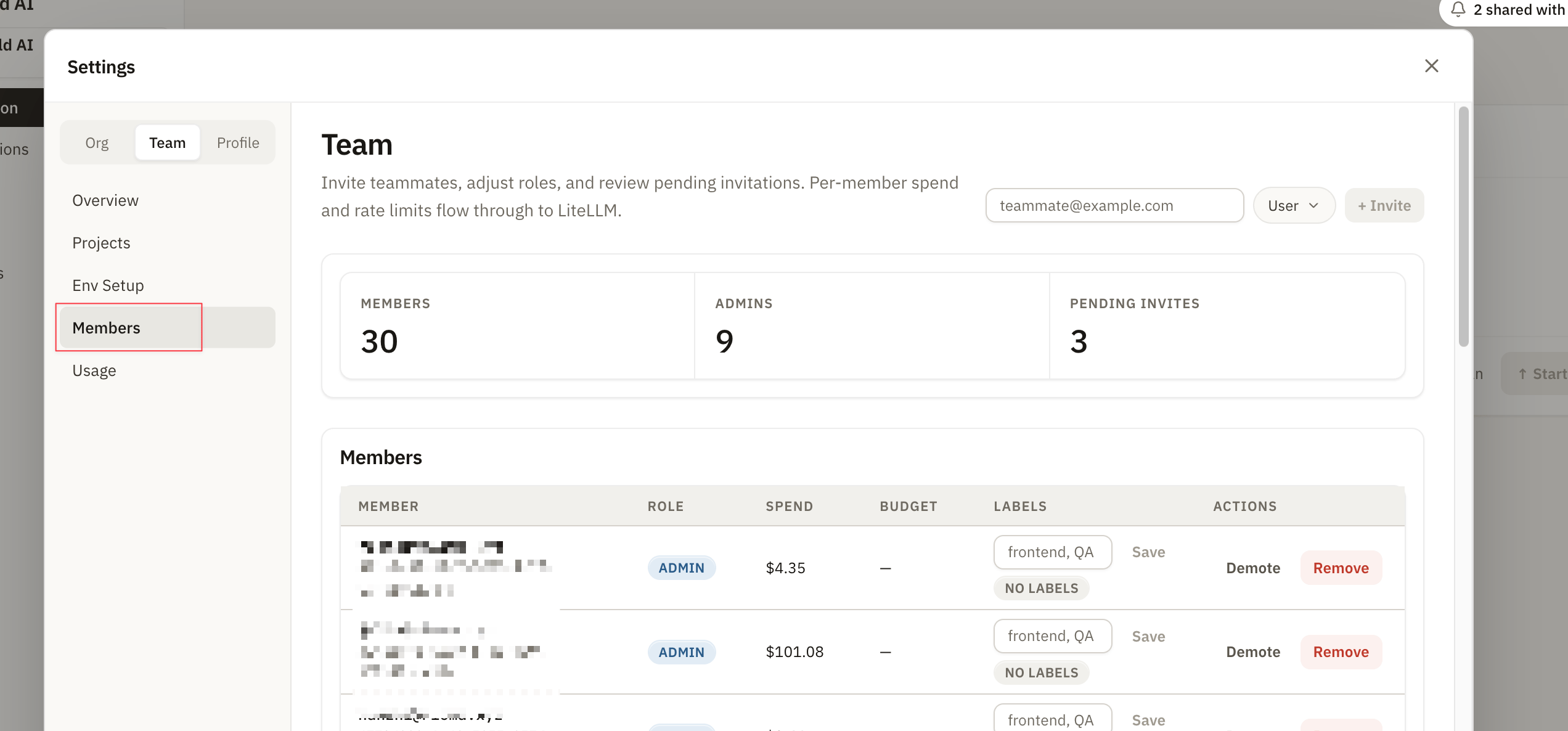
## 2. Invite your team
Invite the people who should collaborate in the Organization. After they accept,
they can access the projects and sessions available to them.
If someone does not see the right Organization, confirm that they signed in with
the email address you invited.
Only admins can see this page.
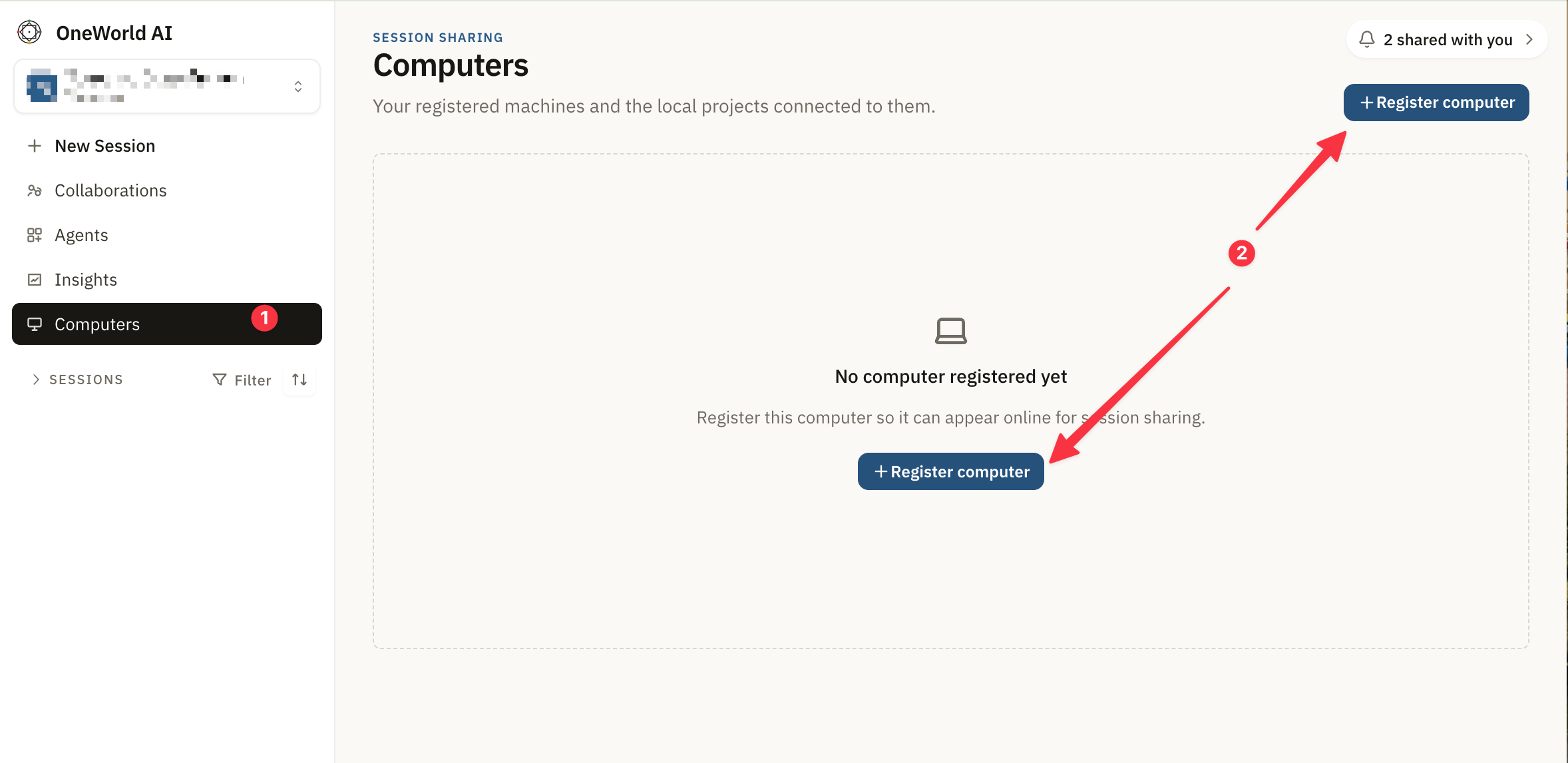
 ## 3. Register a Computer
A Computer is where work can be opened, continued, or run with an AI coding
agent. It may be your own machine or a team-managed environment.
Open Computers tab, then click **Register computer** button.
## 3. Register a Computer
A Computer is where work can be opened, continued, or run with an AI coding
agent. It may be your own machine or a team-managed environment.
Open Computers tab, then click **Register computer** button.
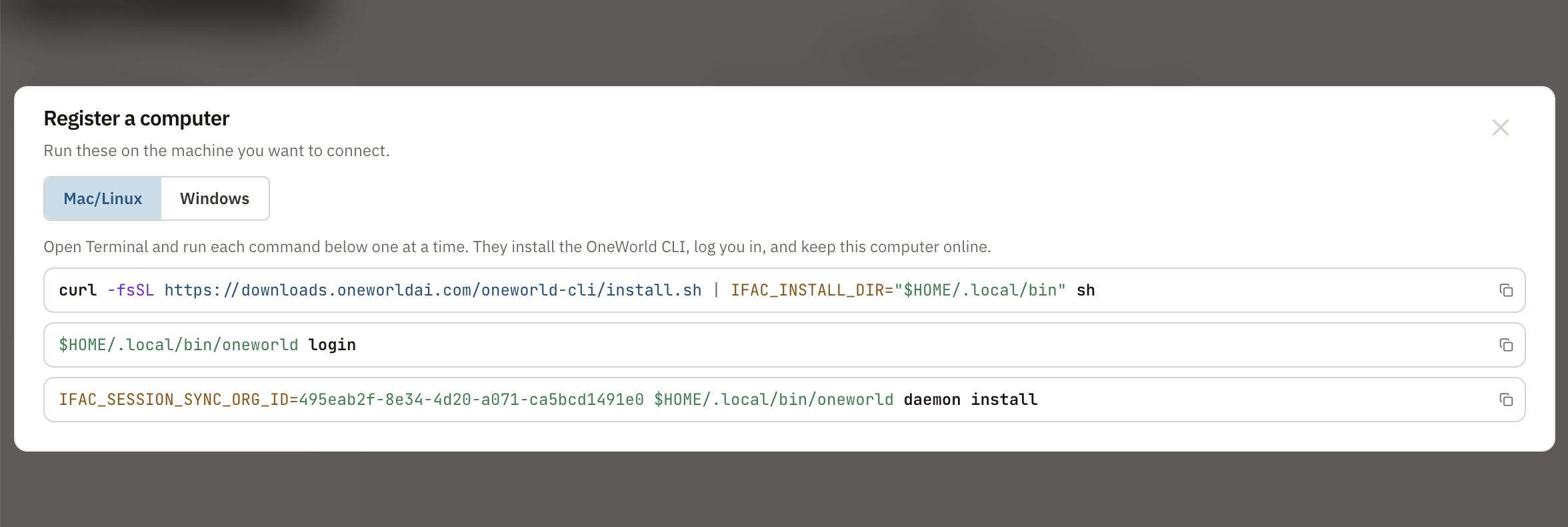
 Run the commands on the machine you want to register. You can run them yourself
in your local terminal, or share the screenshot with your local Agent and ask it
to configure and run the commands for you.
Run the commands on the machine you want to register. You can run them yourself
in your local terminal, or share the screenshot with your local Agent and ask it
to configure and run the commands for you.
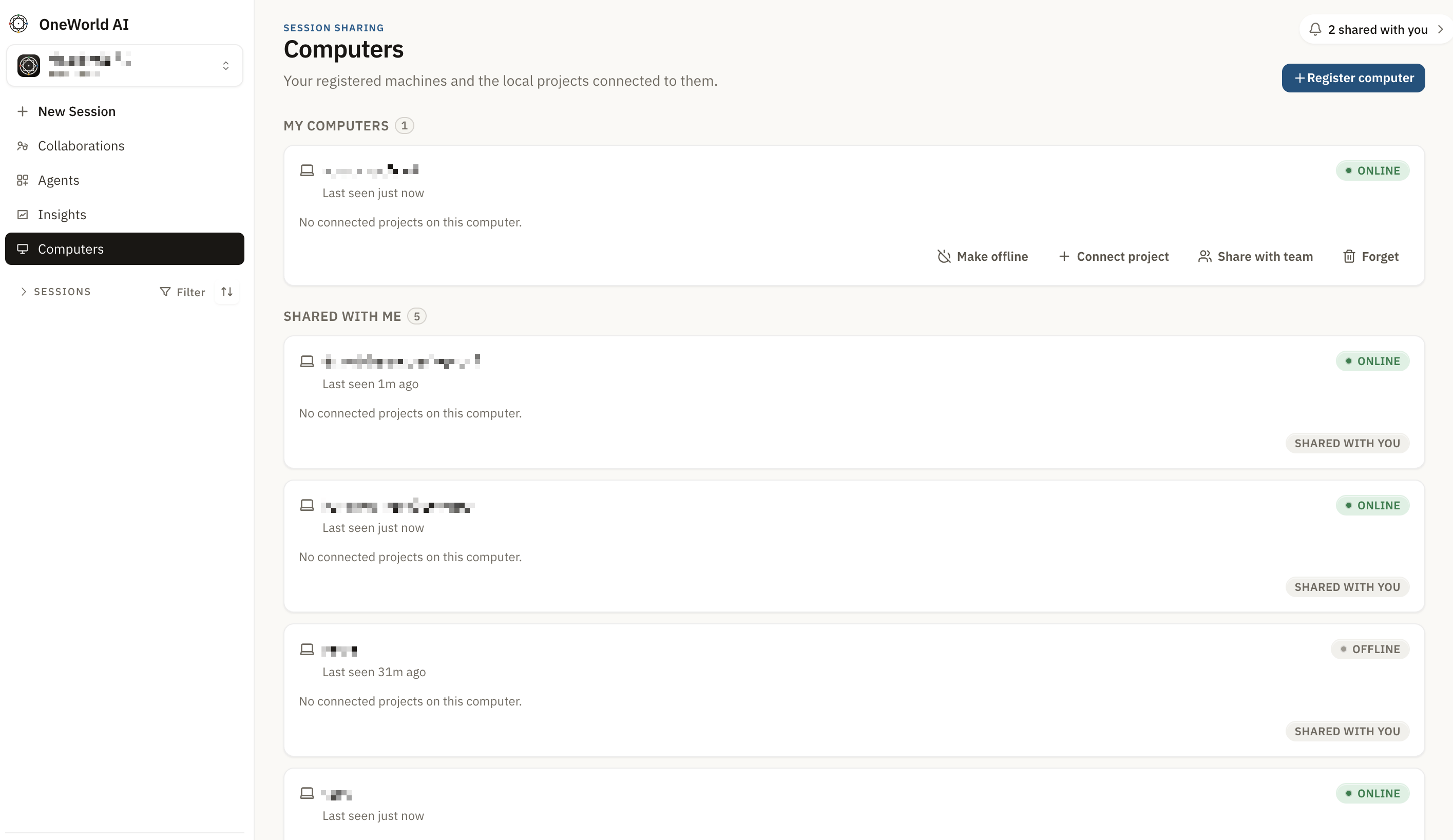
 After the commands run successfully, your Computer and your teammates'
Computers appear on this page.
After the commands run successfully, your Computer and your teammates'
Computers appear on this page.